TikTok LIVE How-To
How to go LIVE with GTA VI on TikTok LIVE Studio
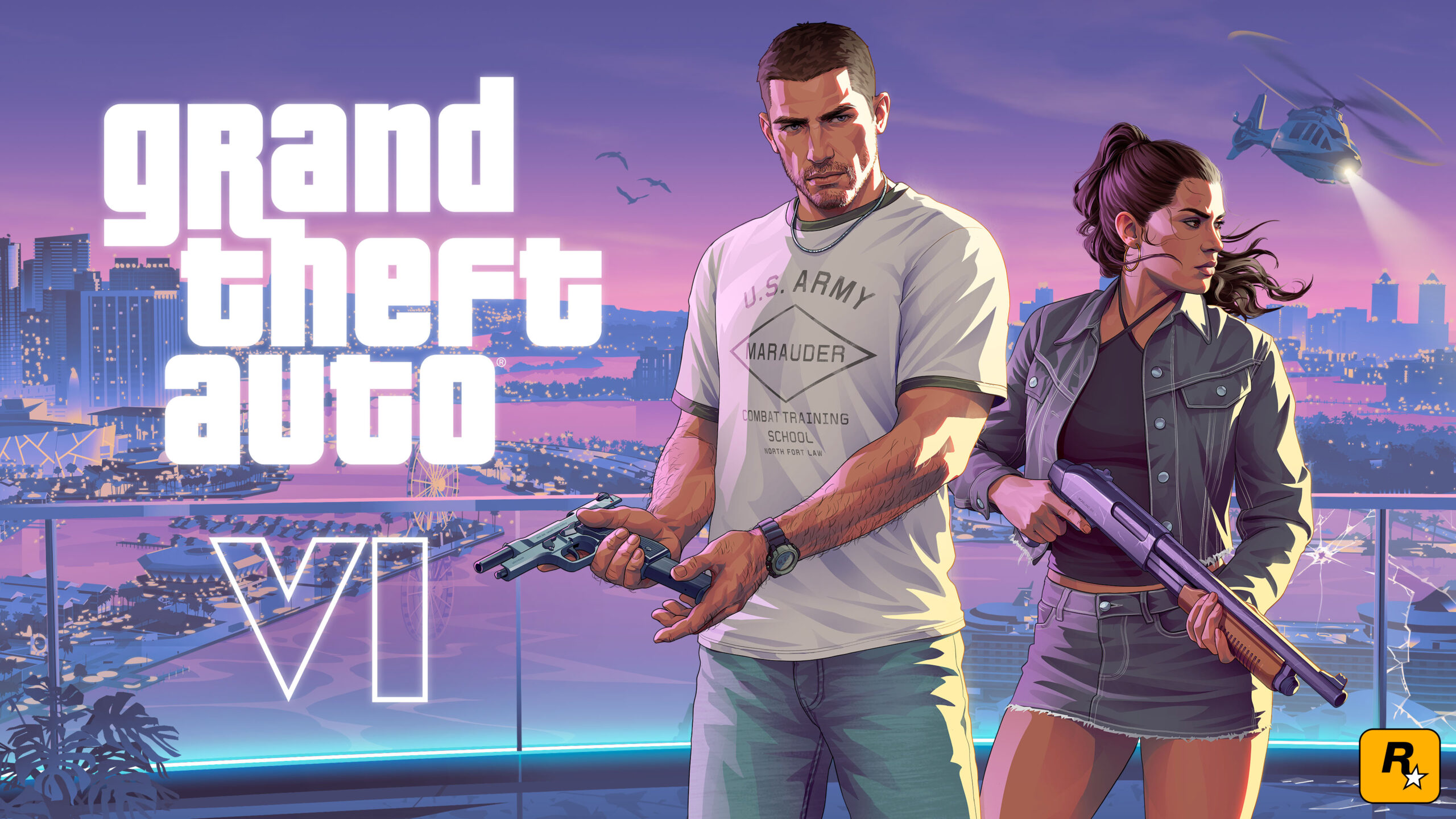
GTA VI is out today on PS5 and Xbox Series X|S. There's no PC version, so LIVE Studio's game capture won't find it. Here's how to bring your console in, plus what gets GTA VI LIVEs ended.
The short version
TikTok published its own GTA VI guide for LIVE Studio. Two ways in, one checklist first.
- Option A, capture card: best picture and sound, no lag on your TV. TikTok recommends this one.
- Option B, Remote Play: no capture card needed. Stream your console to a window on your PC and capture the window.
- Safety: realistic graphics mean nudity or graphic violence can still get your LIVE warned or ended. Keep a camera-only scene ready.
Before you hit Go LIVE
PS5: turn off HDCP
PS5 copy protection turns your capture card feed into a black screen. Go to Settings > System > HDMI and switch off Enable HDCP. Xbox players skip this.
Use a USB 3.0 port
Usually blue or marked "SS." Use a port on the back of your PC, not the front panel and not a hub.
Kill the in-game radio
Set music and radio volume to 0 in GTA VI's audio settings. The radio can play copyrighted songs.
Camera on
Keep your face on screen and talk to chat, especially during long cutscenes. No webcam? Use your phone: Add source > Phone camera.
Build a camera-only scene
Your panic button. If something explicit pops up, cut to it. Make sure game audio is muted in that scene too.
Option A: capture card setup
- PS5 only: HDCP off (see above).
- Cables: console HDMI OUT to capture card HDMI IN. Capture card HDMI OUT to your TV or monitor.
- Play on the TV, not the PC preview. The PC preview runs a little behind.
- USB: capture card into a USB 3.0 port on the back of your PC.
- In LIVE Studio: close anything else using the card (like OBS), then click Add source > Capture card.
PS5 + headset = silent LIVE
When a headset is plugged into your PS5 (controller or wireless USB adapter), the PS5 stops putting game sound out over HDMI. Chat sees the game but hears nothing. Pick one fix:
- Move the headset to your PC. If it supports PC, plug the adapter in there. In LIVE Studio's capture card settings, set Audio output mode to Output audio (DirectSound). A small delay is normal.
- Keep it on the PS5, voice chat only. Go to Settings > Sound > Audio Output and set Output to Headphones to Voice Chat Audio. Game sound goes to your TV and your LIVE. Your headset just carries voice chat.
Option B: Remote Play setup
PS5: step by step
- Turn on Remote Play on your PS5. Go to Settings > System > Remote Play and turn on Enable Remote Play.
- Download the free PS Remote Play app on your computer. Get it from PlayStation's Remote Play page (Windows 10 or 11, or Mac). Open the file and follow the install steps.
- Plug your controller into your computer with a USB cable. A PS5 or PS4 controller works.
- Open PS Remote Play and sign in with the same PlayStation account that's on your PS5.
- Pick PS5. The app finds your console and connects. If it can't, go to Settings > System > Remote Play > Pair Device on your PS5 and type the number it shows into the app.
Want to start without walking over to the console? On your PS5, go to Settings > System > Power Saving > Features Available in Rest Mode and turn on Stay Connected to the Internet and Enable Turning on PS5 from Network.
Want to see each screen? Sony's full setup guide has pictures for every step.
Xbox
Settings > Devices & connections > Remote features, turn on Enable remote features. Then download the free Xbox PC app, sign in with the same Xbox account, and connect to your console from it.
Then in LIVE Studio
Click Add source > Window capture and pick the Remote Play or Xbox app window.
- Never minimize that window. Your LIVE freezes.
- Wi-Fi works fine. If the picture stutters, try plugging your console into your router with Ethernet.
- Heads up: GTA VI on Xbox Cloud Gaming only works on Xbox consoles. Not in a browser, not on PC.
Quick fixes
Black screen
PS5 HDCP off? Capture card on a back USB 3.0 port, not front panel or hub? OBS or anything else using the card closed?
Picture, no game sound
Headset on your PS5? See the headset fixes above. Also check the capture card isn't muted in LIVE Studio.
Washed-out gray colors
Turn off HDR in your console's video settings.
Remote Play frozen
You minimized the window. Bring it back up and leave it open. Choppy instead of frozen? Ethernet can help.
What gets GTA VI LIVEs ended
TikTok's Community Guidelines apply to GTA VI like any game. The catch: TikTok says the graphics are so realistic that nudity, sexual content, or graphic violence can still get you a warning or your LIVE ended. Avoid these when you can:
Nudity and sexual content
Skip the adult venues and sexual activity in the game. Don't zoom in on character bodies.
Graphic violence
No long beatdowns of unarmed characters. No close-ups of injuries.
Surprise explicit scenes
Cutscene goes sideways? Cut to your camera-only scene until it's over.
Looking pre-recorded
Long cutscenes with no face and no talking can make your LIVE look pre-recorded. Stay on camera, talk to chat. Need a break? Pause the LIVE.
Music and language
Radio at 0. Keep your voice louder than the game so in-game cursing doesn't take over.
The camera-only scene is the whole game here. Set it up before you start, test it once, and know the hotkey. You won't have time to build it mid-cutscene.
Rockstar has its own rules too
Separate from TikTok. Rockstar may act on content that includes:
- Pre-release footage from an unreleased copy, including early unboxings.
- Spoilers: endings, story reveals, edited cutscenes or plot dialogue.
- Standalone cutscenes with no gameplay around them.
- In-game entertainment like GTA's TV shows and comedy sets.
- Cheating: money, XP, or item exploits, duplication, God Mode glitches, mod menus in online modes, account selling or gifting.
- Unauthorized mods and ports.
- Anything breaking Rockstar's Terms of Service.
TikTok doesn't clear content for Rockstar and can't protect you from a Rockstar takedown.
Not sure if something's a spoiler? TikTok's guide says you can email Rockstar at copyright@take2games.com.
If your LIVE gets flagged by mistake
Check the details and appeal in LIVE Center > Violations. TikTok is clear that following its guide doesn't guarantee your LIVE won't be reviewed or restricted.
Use Rockstar's media, not random screenshots
Rockstar has a free GTA VI media library: artwork and wallpapers for thumbnails and backgrounds, screenshots, and trailer clips for reaction videos with your own commentary.
Ready to go LIVE?
Book a free 15 minute call with BEAR MINIMUM and we'll map out your LIVE strategy.
Sources
- TikTok LIVE Studio Help Center: How to go LIVE with Grand Theft Auto VI on TikTok LIVE Studio (updated Nov 18, 2026)
- Rockstar Games: Policy on posting copyrighted Rockstar Games material
- PlayStation: How to use PS Remote Play on PC and Mac
- Xbox: Xbox PC app
- Gematsu: Grand Theft Auto VI delayed to November 19, 2026
BEAR MINIMUM is independent and not affiliated with TikTok or Rockstar Games. Grand Theft Auto VI is a trademark of Take-Two Interactive.